6.3.1.12. Push Token

The push token uses the privacyIDEA Authenticator app. You can get it from Google Play Store or Apple App Store.

The token type push sends a cryptographic challenge via a configured push-capable SMS gateway to the smartphone of the user. The built-in Firebase, HTTP, and Script providers support PUSH messages. Firebase gateways are enabled by default; HTTP and Script gateways require ALLOW_PUSH=yes. This push notification is displayed on the smartphone of the user with a text that tells the user that he or somebody else requests to log in to a service. The user can simply accept this request. The smartphone sends a cryptographically signed response to the privacyIDEA server and the login request gets marked as confirmed in the privacyIDEA server. The application checks for this mark and then finalizes the login with privacyIDEA. For an example of how the components in a typical Firebase deployment of push tokens interact reference the following diagram.
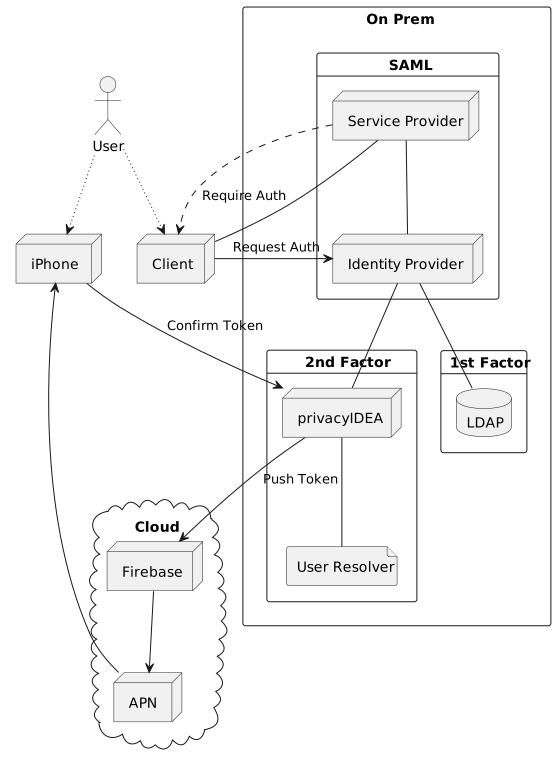
../../_images/push_token_deployment.svg

A typical push token deployment

To allow privacyIDEA to send push notifications, configure a push-capable SMS gateway. See SMS Gateway configuration and Firebase Provider.

The PUSH token implements the outofband mode.

6.3.1.12.1. Configuration

The minimum necessary configuration is the two enrollment policies push_firebase_configuration (a push-capable gateway, or poll only) and push_registration_url. Without push_registration_url the enrollment fails with “Missing enrollment policy for push token: push_registration_url”.

With the authentication policies push_text_on_mobile and push_title_on_mobile you can define the contents of the push notification.

If you want to use push tokens with legacy applications that are not yet set up to be compatible with out-of-band tokens, you can set the authentication policy push_wait. Please note, that setting this policy can interfere with other tokentypes and will impact performance, as detailed in the documentation for push_wait.

6.3.1.12.2. Enrollment

The enrollment of the push token happens in two steps.

6.3.1.12.2.1. Step 1

The user scans a QR code. This QR code contains the basic information for the push token and an enrollment URL, to which the smartphone should respond in the enrollment process.

The smartphone stores this data and creates a new key pair.

6.3.1.12.2.2. Step 2

The smartphone sends its device token (named fbtoken in the enrollment API for compatibility), the public key of the keypair, the serial number and an enrollment credential back to the enrollment URL of the privacyIDEA server.

The server responds with its public key for this token.

6.3.1.12.3. Authentication

6.3.1.12.3.1. Triggering the challenge

The authentication request is triggered by an application just as for any challenge-response token either with the PIN to the endpoint /validate/check or via the endpoint /validate/triggerchallenge, which requires the authorization token of an administrator with the admin policy triggerchallenge.

privacyIDEA sends a cryptographic challenge with a signature to the configured push gateway. The gateway sends the notification to the smartphone, which can verify the signature using the public key from enrollment step 2.

6.3.1.12.3.2. Accepting login

The user can now accept the login by tapping on the push notification. The smartphone sends the signed challenge back to the authentication URL of the privacyIDEA server. The privacyIDEA server verifies the response and marks this authentication request as successfully answered.

In some cases the push notification does not reach the smartphone. The smartphone can also poll for active challenges.

6.3.1.12.3.3. Declining login

Instead of accepting, the user can decline the request. The app signs a reason together with its answer and thus distinguishes two cases: the user did not trigger this login at all (unknown_trigger), or triggered it and aborted (cancelled). The first marks the challenge as declined, the second as cancelled, which /validate/polltransaction reports as the challenge_status, so that the application can react accordingly.

Every answer the server acts on is written to the audit log. The action_detail of the entry of the answer (POST /ttype/push) names the transaction and the resulting status – accept, declined, cancelled, or confirmed for the smartphone step of code_to_phone – plus the reason the app sent with a refusal. An answer the server rejects, such as a wrong or missing presence answer, records no status: there is no outcome to name, and the challenge stays open for another try. The authentication that fails because of a refusal names transaction and status as well. An app sending a reason this server version does not know declines the challenge like an app that sends no reason at all; the value it did send is only visible in the audit entry of the answer.

The two reasons are also separate events in the authentication log, so conditional access can act on them differently: CHALLENGE_DECLINED_UNKNOWN_TRIGGER for the login the user says they did not start, CHALLENGE_CANCELLED for the one they abandoned themselves, and the plain CHALLENGE_DECLINED where no usable reason was sent. The first is the user reporting somebody else’s attempt and deserves a policy with a low threshold; the last is deliberately the fallback for an unknown reason, so a value a newer app invents is never read as that report. See Event types.

These types are recorded for the app’s answer at /ttype/push. When the client then finalizes the declined challenge with /validate/check, that request is recorded as CHALLENGE_CANCELLED for a canceled push and as CHALLENGE_DECLINED for every other decline, including one the user marked as not started by them. A policy that counts CHALLENGE_DECLINED therefore also counts those finalizing requests.

6.3.1.12.3.4. Login to application

The application polls /validate/polltransaction with the original transaction ID. Once it returns true, the application must send /validate/check with the user, the transaction ID and an empty pass. Only the result of this request decides the login, because only /validate/check applies the authentication and authorization policies (see outofband mode).

6.3.1.12.3.5. Challenge lifetime

As an out-of-band token (see Authentication Modes and Client Modes), a push challenge has two consecutive time windows:

  • Answer window – the time the smartphone has to accept or decline the challenge. It is controlled by PushChallengeValidityTime (falling back to DefaultChallengeValidityTime, 120 seconds). A response that arrives after this window is rejected.

  • Finalize window – once the smartphone has answered, the challenge expiration is pushed out to at least PushChallengeFinalizeGrace seconds (default 300) from the moment it was answered, so that the application can still read the outcome via /validate/polltransaction (after a refusal, challenge_status is declined or cancelled) and finalize the authentication via /validate/check. /validate/check answers a refused challenge with a plain reject; the reason the app sent is recorded in the audit log and the authentication log (see Declining login above). The expiration only ever moves forward, so with an answer window longer than the grace period, the challenge may stay redeemable until its original expiration. Once the challenge finally expires it can no longer be redeemed.

During enrollment via enroll_via_multichallenge, the user has to scan the QR code and the app has to complete the second enrollment step within the answer window (PushChallengeValidityTime). The finalize window then bounds how long the application can finalize the enrollment via /validate/check. If the app completes the second step after the answer window, the token is still enrolled, but the login that started the enrollment fails and has to be repeated. Both windows behave identically whether or not the Redis challenge cache is enabled.

6.3.1.12.4. More information

For a more detailed insight see the code documentation for the Push Token.

For an in depth view of the protocol see the GitHub issue and the wiki page.

Information on the polling mechanism can be found in the corresponding wiki page.

For recent information and a setup guide, visit the community blog