12. Audit
The systems provides a sophisticated audit log, which can be viewed in the WebUI.
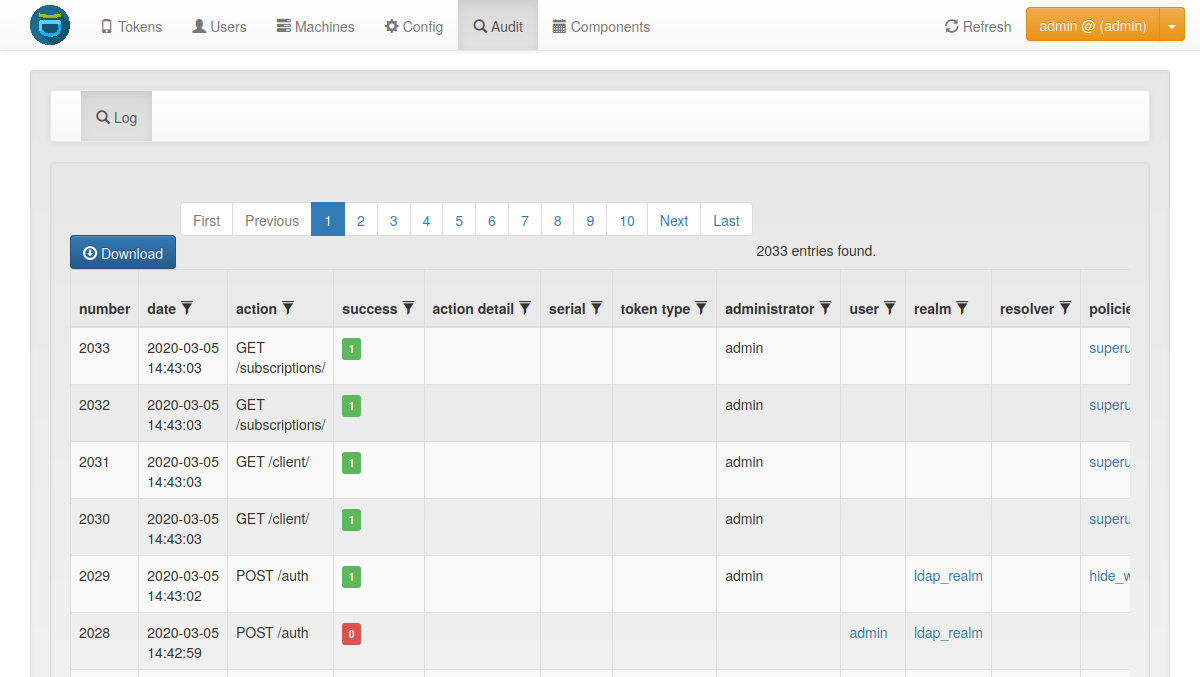
Audit Log
privacyIDEA comes with a default SQL audit module (see Audit log).
Next to the audit log, privacyIDEA keeps an Authentication Log which records the outcome of every authentication request.
Starting with version 3.2 privacyIDEA also provides a Logger Audit and a Container Audit which can be used to send privacyIDEA audit log messages to services like splunk or logstash.
12.1. SQL Audit
12.1.1. Searching the audit log
The audit log can be filtered in the WebUI and via the GET /audit/ API by
any audit column (user, realm, serial, action, …). Filter
values are matched as follows:
*is the wildcard and matches any sequence of characters. For example,action=*/token/initmatches every action ending in/token/initandserial=OATH*matches every serial starting withOATH.All other characters are matched literally. In particular
%and_are not wildcards. A value that contains no*must match the column exactly.A leading
!negates the condition, e.g.authentication=!CHALLENGEreturns the entries whoseauthenticationis notCHALLENGE.
Changed in version 3.14: * is the only wildcard. Earlier versions also
treated a literal % as a wildcard in the audit search; now % and
_ match literally. Update any saved filters or integrations that relied
on % to use * instead.
12.1.2. Cleaning up entries
The sqlaudit module writes audit entries to an SQL database.
For performance reasons the audit module does not remove old audit entries
during the logging process.
But you can set up a cron job to clean up old audit entries. Since version
2.19 audit entries can be either cleaned up based on the number of entries or
based on the age. A config file (--config) takes precedence over the age,
and the age takes precedence over the number of entries.
The Ubuntu packages ship such a job commented out; the Docker image rotates by the number of entries, see Cleanup Jobs.
Added in version 2.22: The --chunksize parameter allows cleaning up audit
entries in chunks to avoid exzessive memory usage.
12.1.2.1. Cleaning based on the number of entries:
You can specify a highwatermark and a lowwatermark. To clean up the audit log table, you can call the pi-manage script on the command line:
pi-manage audit rotate --highwatermark 20000 --lowwatermark 18000
If there are more than 20000 log entries, this will clean up all old log entries, leaving only 18000 log entries.
12.1.2.2. Cleaning based on the age:
You can specify the number of days, how old an audit entry may be at a max:
pi-manage audit rotate --age 365
This will delete all audit entries that are older than one year.
12.1.2.3. Cleaning based on the config file:
Added in version 2.21.
Using a config file, you can define different retention times for the audit data. E.g. this way you can define, that audit entries about token listings can be deleted after one month, while the audit information about token creation will only be deleted after ten years.
The config file is in a YAML format and looks like this:
# DELETE auth requests of nils after 10 days
- rotate: 10
  user: nils
  action: .*/validate/check.*

# DELETE auth requests of friedrich after 7 days
- rotate: 7
  user: friedrich
  action: .*/validate/check.*

# Delete nagios user test auth directly
- rotate: 0
  user: nagiosuser
  action: POST /validate/check.*

# Delete token listing after one month
- rotate: 30
  action: ^GET /token

# Delete audit logs for token creating after 10 years
- rotate: 3650
  action: POST /token/init

# Delete everything else after 6 months
- rotate: 180
  action: .*
This is a list of rules. privacyIDEA iterates over all audit entries. The first matching rule for an entry wins. If the rule matches, the audit entry is deleted if the entry is older than the days specified in “rotate”.
It is a good idea to have a catch-all rule at the end. A rule needs at least one condition besides
“rotate”, a rule without one matches no entry. The catch-all rule above uses action: .*.
Note
The keys “user”, “action”… correspond to the column names of the audit table.
You can use any column name here like “date”, “action”, “action_detail”, “success”, “serial”, “administrator”,
“user”, “realm”… for a complete list, see the model definition here: privacyidea.models.Audit.
You may use Python regular expressions for matching.
You can then add a call like:
pi-manage audit rotate --config /etc/privacyidea/audit.yaml
in your crontab.
With a config file, the matching entries are deleted in slices of --chunksize entries, or
of 1000 entries without it. The command reads all audit entries to match them against the
rules, so if the audit table is very big, consider cleaning based on the age or number of
entries first.
12.1.3. Access rights
You may also want to run the cron job with reduced rights. I.e. a user who has no read access to the original pi.cfg file, since this job does not need read access to the SECRET or PEPPER in the pi.cfg file.
So you can simply specify a config file with only the content:
PI_AUDIT_SQL_URI = <your database uri>
Then you can call pi-manage like this:
PRIVACYIDEA_CONFIGFILE=/home/cornelius/src/privacyidea/audit.cfg \
pi-manage audit rotate
This will read the configuration (only the database URI) from the config file
audit.cfg.
12.1.4. Table size
The entries to be written to the database may be longer than the column in the database, since they contain data from the request. Such an entry is shortened to the length of the column, so that it is still written: a database rejects a value that is too long, which would lose the whole entry. Values that hold a list of items, like the serials of all tokens of a request, are shortened per item, so that every item stays recognizable.
The length of a column is read from the database, so a table whose columns are narrower than the ones privacyIDEA ships is handled without any configuration: its entries are shortened to what it really accepts instead of being rejected.
Reading the database can only shorten a value further, though, never lengthen
it: a wider column is not used on its own. So if you increase a column length
by the usual database means
(i.e. ALTER TABLE pidea_audit MODIFY user varchar(1000); for MariaDB),
tell privacyIDEA about it in your config file:
PI_AUDIT_SQL_COLUMN_LENGTH = {"user": 1000,
                              "policies": 1000}
which allows entries to use the additional space. Without this setting, values
are still shortened to the length privacyIDEA ships and the space you added
stays unused. Check the database schema for the available columns here:
privacyidea.models.Audit.
Note
The setting PI_AUDIT_SQL_TRUNCATE is not needed any more and is
ignored. Entries are always shortened to what the audit table can hold.
12.2. Logger Audit
The Logger Audit module can be used to write audit log information to the Python logging facility and thus write log messages to a plain file, a syslog daemon, an email address or any destination that is supported by the Python logging mechanism. The log message passed to the python logging facility is a JSON-encoded string of the fields of the audit entry.
You can find more information about this in Advanced Logging.
To activate the Logger Audit module you need to configure the following settings in your pi.cfg file:
PI_AUDIT_MODULE = "privacyidea.lib.auditmodules.loggeraudit"
PI_AUDIT_SERVERNAME = "your choice"
PI_LOGCONFIG = "/etc/privacyidea/logging.cfg"
You can optionally set a custom logging name for the logger audit with:
PI_AUDIT_LOGGER_QUALNAME = "pi-audit"
It defaults to the module name privacyidea.lib.auditmodules.loggeraudit.
In contrast to the SQL Audit you need a PI_LOGCONFIG otherwise
the Logger Audit will not work correctly.
In the logging.cfg you then need to define the audit logger:
[logger_audit]
handlers=audit
qualname=privacyidea.lib.auditmodules.loggeraudit
level=INFO

[handler_audit]
class=logging.handlers.RotatingFileHandler
backupCount=14
maxBytes=10000000
formatter=detail
level=INFO
args=('/var/log/privacyidea/audit.log',)
Note, that the level always needs to be INFO. In this example, the
audit log will be written to the file /var/log/privacyidea/audit.log.
Finally you need to extend the following settings with the defined audit logger and audit handler:
[handlers]
keys=file,audit

[loggers]
keys=root,privacyidea,audit
Note
The Logger Audit only allows to write audit information. It can not be used to read data. So if you are only using the Audit Logger, you will not be able to view audit information in the privacyIDEA Web UI! To still be able to read audit information, take a look at the Container Audit.
Note
The policies auth_max_success and auth_max_fail depend on reading the audit log. If you use a non readable audit log like the Logger Audit these policies will not work.
12.3. Container Audit
The Container Audit module is a meta audit module, that can be used to write audit information to more than one audit module.
It is configured in the pi.cfg like this:
PI_AUDIT_MODULE = 'privacyidea.lib.auditmodules.containeraudit'
PI_AUDIT_CONTAINER_WRITE = ['privacyidea.lib.auditmodules.sqlaudit','privacyidea.lib.auditmodules.loggeraudit']
PI_AUDIT_CONTAINER_READ = 'privacyidea.lib.auditmodules.sqlaudit'
The key PI_AUDIT_CONTAINER_WRITE contains a list of audit modules,
to which the audit information should be written. The listed
audit modules need to be configured as mentioned in the corresponding audit
module description.
The key PI_AUDIT_CONTAINER_READ contains one single audit module, that
is capable of reading information. In this case the SQL Audit module can be
used. The Logger Audit module can not be used for reading!
Using the Container Audit module you can on the one hand send audit information to external services using the Logger Audit but also keep the audit information visible within privacyIDEA using the SQL Audit module.